
If you’ve noticed the Nano Banana category on the blog, you might be wondering: “What’s special about these and how do I use them?”
Nano Banana: Specialized Creativity
These prompts are specifically optimized to work across a variety of AI tools, but they shine especially well in platforms that support advanced text-to-image and creative generation.
You can use these prompts in:
- Gemini: Google’s powerful AI.
- Flow: For streamlined creative workflows.
- Any other app that supports standard AI prompting!
How to get started
Find a Nano Banana Prompt
Look for posts with the yellow “Nano Banana” tag in the blog. These have been carefully curated for high impact.
Copy the special code
Copy the prompt text from the code box. Nano Banana prompts often include keywords that trigger specific high-quality styles.
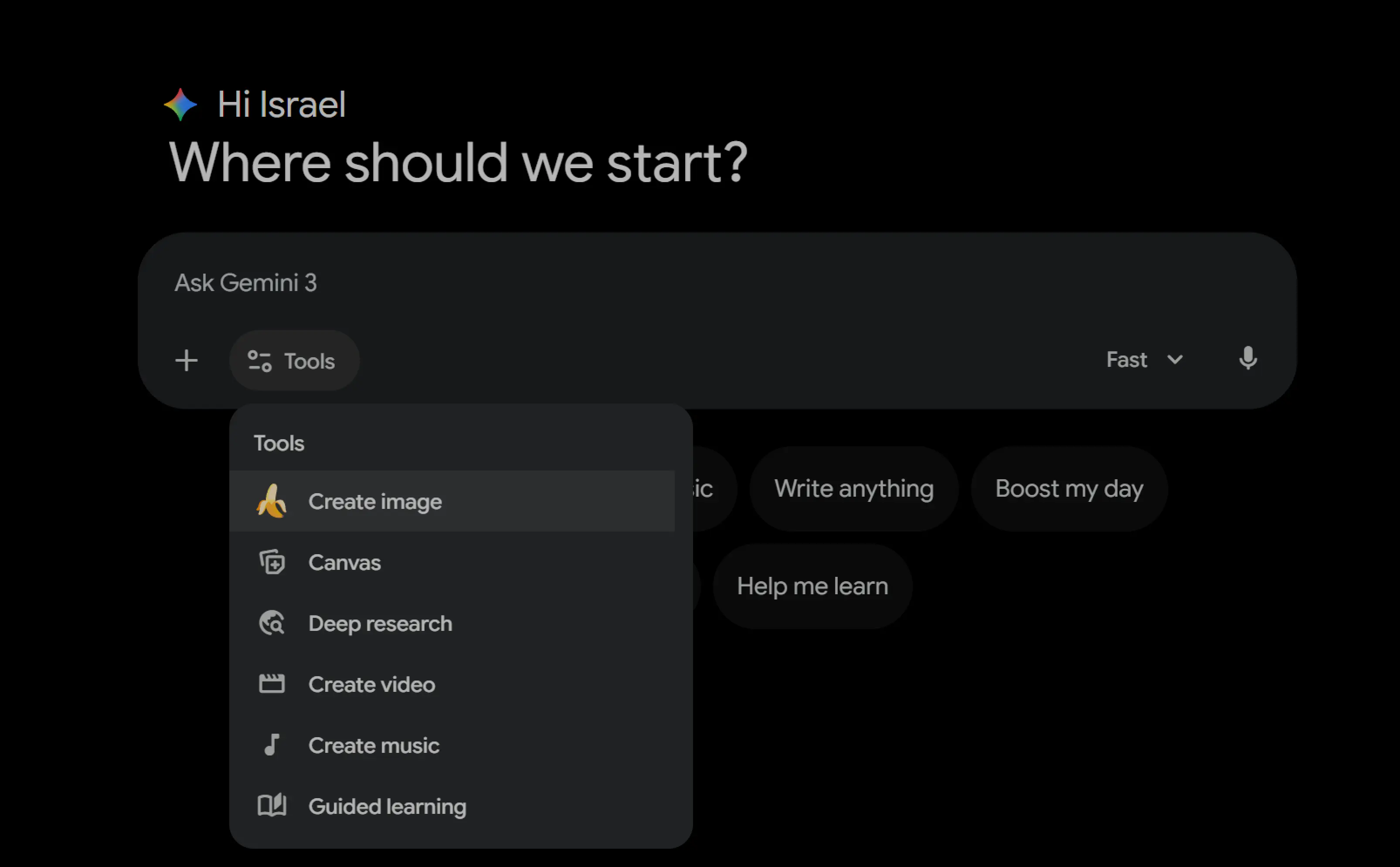
Input into Gemini
Open Gemini and select the Create image tool from the menu.
Paste your prompt there. 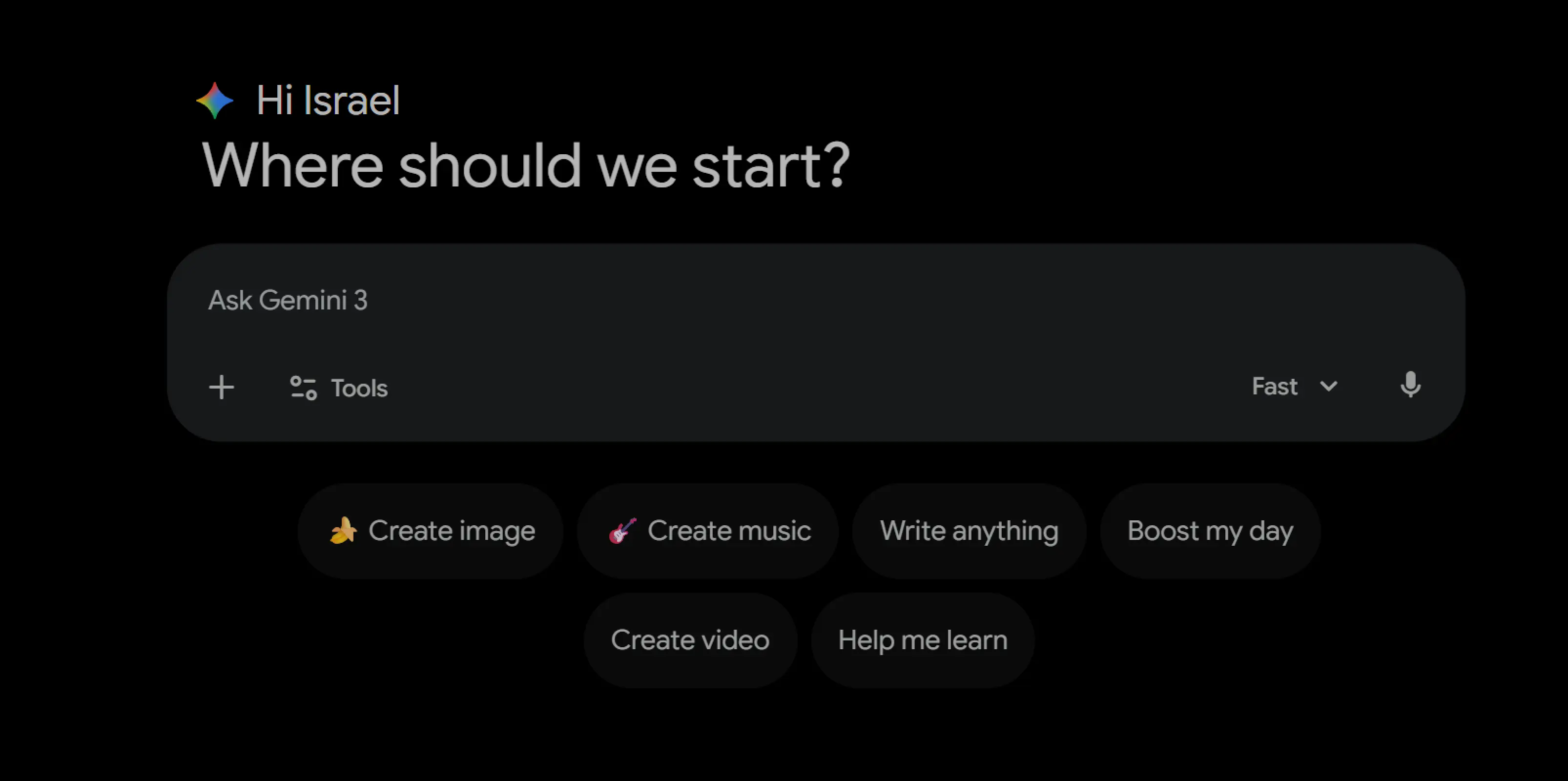
Input into Flow
If you are using Flow, paste the prompt and make sure to
select the Nano Banana 2 model from the configuration panel for the best results. 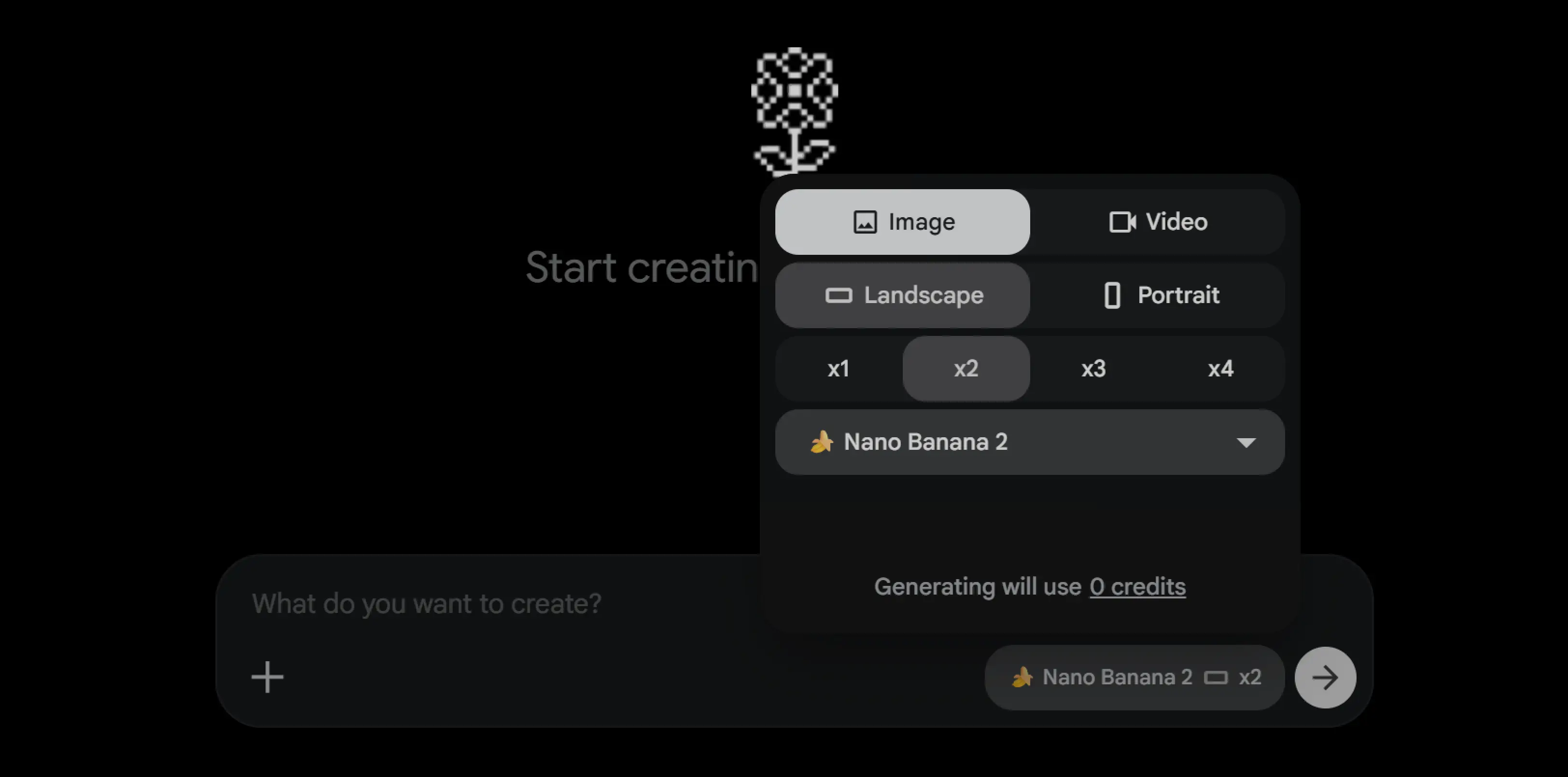
Try this example!
Copy and paste this into Gemini or Flow to see the Nano Banana magic:
Hyper-realistic portrait of a cyborg banana explorer in a neon-lit cybernetic jungle, intricate metallic details, yellow glowing circuits, misty atmosphere, macro photography, 8k resolution, cinematic lighting.The Nano Banana style is all about vibrant colors and unique concepts. Happy creating!
Did you like this content?
If you want to keep seeing this type of content, you can support me with a donation via PayPal.